
How to Optimize WooCommerce Checkout for Maximum Conversions
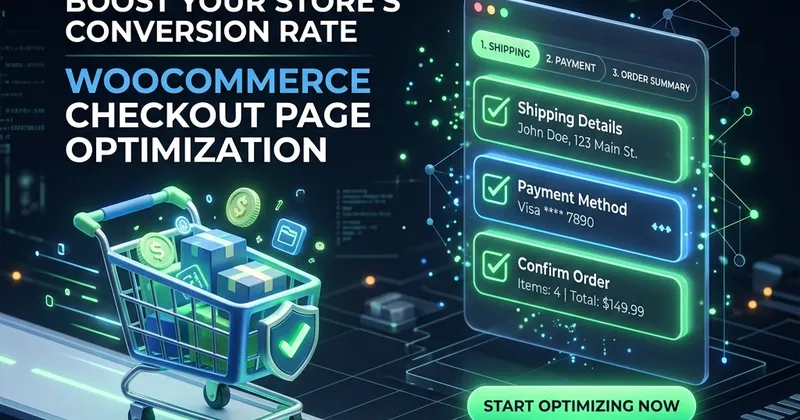
The checkout page is the most critical part of your WooCommerce store. Yet, on average, nearly 70% of shopping carts are abandoned before a purchase is completed. If you want to increase sales without spending more on marketing, optimizing your checkout flow is the single most effective action you can take.
Here are the best strategies to optimize your WooCommerce checkout page for maximum conversions:
1. Simplify the Layout and Remove Distractions
A standard WooCommerce checkout page often includes headers, sidebars, footer links, and promotional banners. At the checkout stage, these are distractions.
- Enable a Distraction-Free Mode: Remove the main menu navigation, sidebars, and footer links so the user has only one goal: completing the purchase.
- Use a Single-Column or Clean Two-Column Layout: Keep the billing details on one side and the order review/payment details on the other.
2. Enable Guest Checkout
Requiring users to create an account before buying is one of the top reasons for cart abandonment.
- Go to WooCommerce > Settings > Accounts & Privacy.
- Check the option: “Allow customers to place orders without an account”.
- You can still offer them the option to create an account on the “Thank You” page after they have completed the checkout.
3. Implement One-Click/Express Checkout Options
Modern buyers expect speed. Offering express payment options can dramatically reduce the friction.
- Integrate Apple Pay, Google Pay, or PayPal Express Checkout.
- These options allow users to bypass the traditional checkout form completely by pulling their shipping and payment info directly from their device or account.
4. Optimize Form Fields (Remove the Bloat)
WooCommerce, by default, asks for a lot of information that might not be necessary for your business (e.g., Company Name, Address Line 2, Phone Number for digital products).
- Use a plugin like Checkout Field Editor or write a custom function in your
functions.phpto hide non-essential fields. - For digital downloads, only ask for Name and Email.
5. Utilize Inline Validation and Auto-Address Complete
Prevent errors before they happen.
- Enable Google Address Autocomplete so customers can type their address in a single field and have the rest filled out automatically.
- Show clear green checkmarks for correct entries and helpful, real-time error messages for invalid inputs.
By implementing these checkout optimizations, you will provide a smoother user experience, build trust, and ultimately see a significant boost in your shop’s conversion rates.